Getting your companion running
Four steps, then a tour of every panel. If anything here does not match what you see, say so in our Discord.
1 · Install
Run the installer and choose where it goes. Windows may warn that the publisher is unknown — choose More info then Run anyway. Nothing else is needed: their voice and their ears are already inside.
2 · Sign in
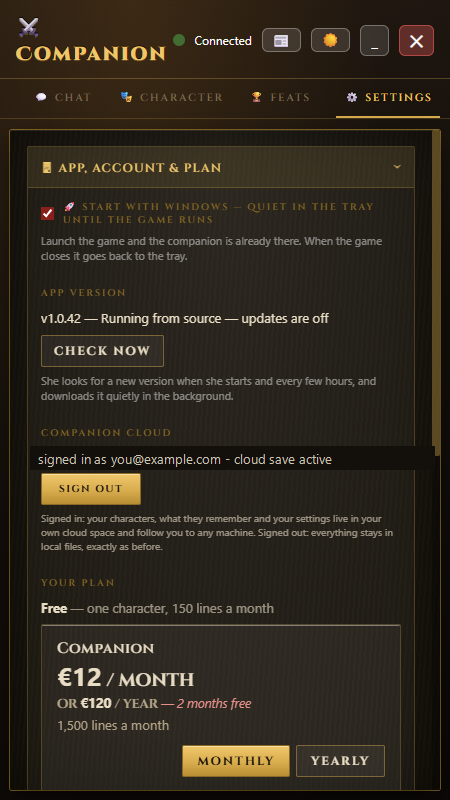
Settings, then Companion cloud. Signed in, your characters and their memories follow you to any machine. Signed out, everything stays in local files and still works.
3 · Add the add-on
Copy the FRIDAYBridge folder into your game Interface\AddOns folder, then restart the game. Without it they still talk; with it they know what is happening.
4 · Play
Log in to a character and they pick it up. Switching character pauses them on purpose — press the glowing play button on the overlay when you want them talking again.
The Chat panel
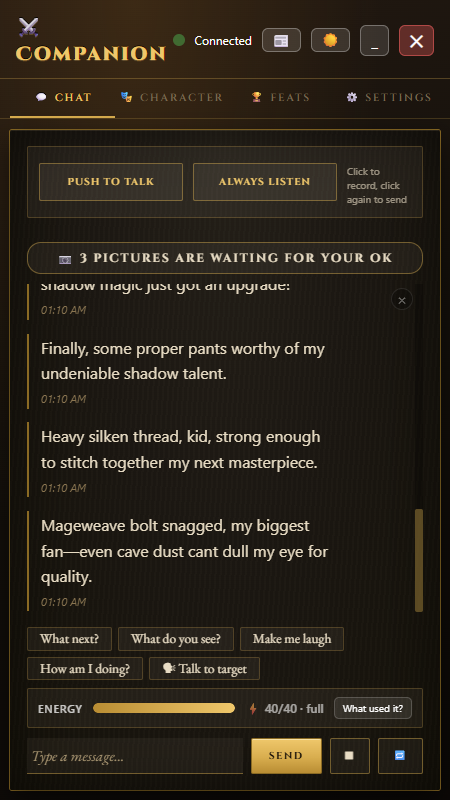
Where you talk to them by typing, and where everything they say is written down.
- Push to talk records while you hold it. Always listen keeps the microphone open and sends when you stop speaking.
- The buttons under their replies are follow-ups that change with what they just said — one click instead of typing.
- The energy bar shows the lines you have left this month and when the next one returns. It is hidden on unmetered plans.
- Pictures they took during play wait for your approval here before any of them go into the book.
The Character panel
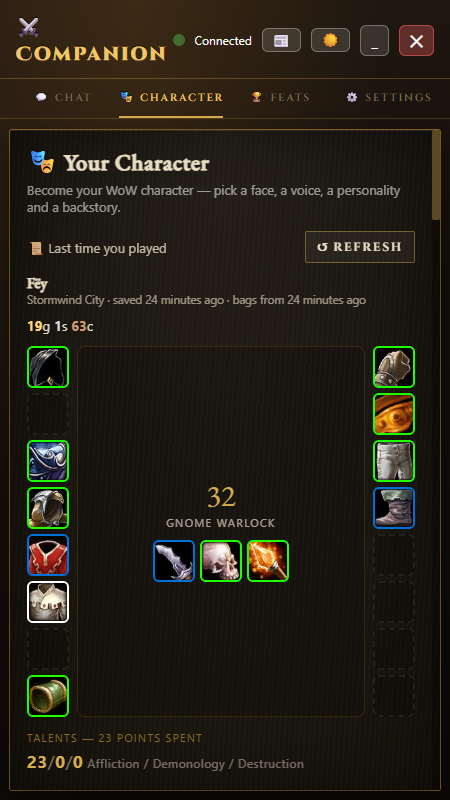
Who they are, and what they know about the character you are playing.
- Their face, their voice, their personality and their backstory, grouped so you can change one without hunting for it.
- Live detail straight from the game: zone, level, class, talents, gear and gold, refreshed as you play.
- Personality presets are free. Writing their personality in your own words, rewriting their lines, and recording your own voice are Companion Plus.
- Voice fine-tuning — expression, pace, variety, and effects such as cave or crypt reverb — also lives here on Plus.
Making a character, start to finish
Every field of the Character panel, filled in on camera: race and class, the voice, the personality and backstory, and the lines they say when something dies.
Trouble seeing it? Watch it on YouTube.
The Feats panel
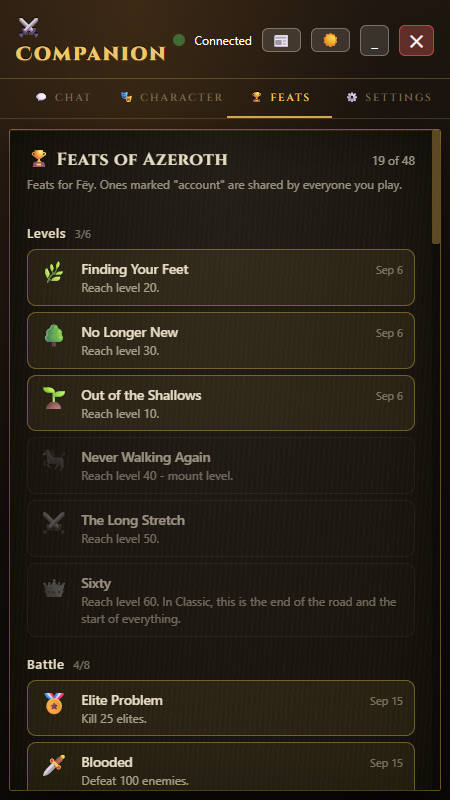
Classic Era has no achievement system. This is one, built from what the add-on already watches.
- Earned from real play — kills, dungeons, close calls, quests — not from anything you have to opt into.
- They notice when you earn one and say so, in character.
- Available on every plan, including free.
The Settings panel
Grouped into sections so it is not one long wall of switches.
- App, account and plan — start with Windows, check for updates, sign in, and see or change your plan.
- Voice and speech — which voice, how loud, and whether they run on your graphics card or your processor.
- Session book — approve or delete the pictures they take before any of them are uploaded.
- Game add-on — what they watch for, and how talkative they are while you play.
What is that little coloured line?
It is how the add-on talks to your companion, and it is the only way it can. Here it is in a real game — you have to know it is there to find it.
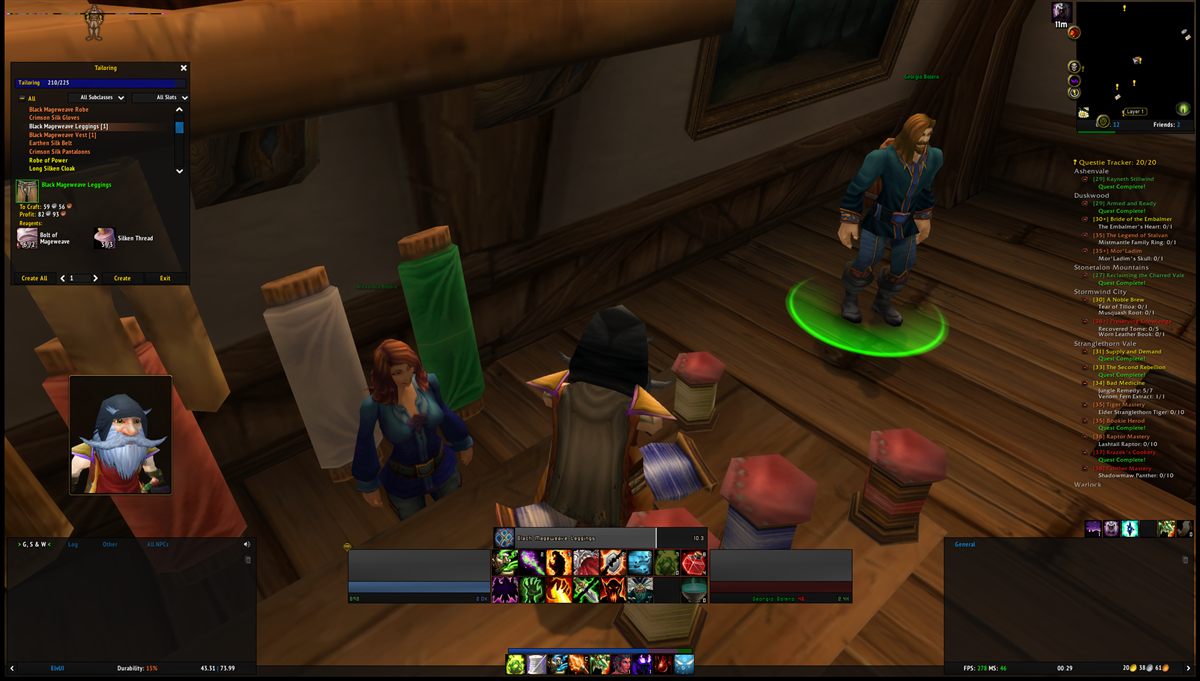
A real session. The line is in the top-left corner — most people stop noticing it within a minute.

The same line, magnified six times. Actual size: 300 × 2 pixels.
Why it has to exist
A World of Warcraft add-on cannot open a network connection, write a file, or speak to another program — Blizzard's sandbox forbids all three, and that rule is what keeps add-ons safe. It can only draw on your screen. So the add-on writes what is happening as coloured pixels, and your companion reads them back. It is a screen you look at with a camera instead of a cable.
What rides on it
Your health, zone, level, target, coordinates, the item you just looted and the quest objective that just ticked — about 180 bytes, refreshed constantly. The game's own log file carries the same facts, but ten to sixty seconds late. That is the difference between a companion who reacts and one who reminisces.
You can move it, or turn it off
In game, type /fbridge y 0 to sit it flush against the top edge, or /fbridge y 40 to drop it lower — useful if an FPS counter or an overlay already lives in that corner, because anything covering the line makes them blind to it.
Type /fbridge on its own and it disappears entirely. Every command, and a tour of each panel, is on the help page. Your companion still writes your session book from the game's log — they just stop knowing things the moment they happen.
Everything you can tell the add-on
Type these into the game’s chat box. Every one of them is remembered, so you set it once per character and forget it.
The portrait is a display-only view of your own character, drawn by the game’s official model API. It never sends input, automates anything, or reads memory — and because the game draws it, it shows up on your stream.
Frequently asked
Can this get me banned?
No. They never send input to the game, never automate anything, and never read the game memory. They read the screen, and the log files the game itself writes — the same things a streamer overlay reads. The add-on is ordinary Lua using Blizzard own API. There is a fuller answer on the main page.
What is the little coloured line at the top of my screen?
It is how the add-on passes live game data to your companion, and it is the only channel the game sandbox allows. It is 300 by 2 pixels. Move it with /fbridge y 0 or switch it off with /fbridge. Full explanation on the main page.
Do I need a graphics card?
No. They talk, listen and write your book on the processor alone — they just take a little longer to start speaking. A graphics card makes them quick, it is not what makes them work. On a 2017 machine with a GTX 1080 Ti they begin speaking 75 milliseconds after deciding what to say.
Do I need to install Python, CUDA or anything else?
No. Their voice and their ears are inside the installer and run on your own machine. Nothing to set up, no models to download by hand, and no second computer.
Do they need the internet?
For their words, yes — the language model is a cloud call. Their voice and their transcription are local, so those keep working on a poor connection.
What counts as a line?
One thing they say that had to be written by the language model. Cached reactions, their voice, the effects and the session book are free and unmetered. Free gives you 150 lines a month, Companion 1,500, Companion Plus 3,500.
What happens when I run out of lines?
They go quiet rather than breaking. Their cached reactions, their voice, the effects and the session book keep working until the counter resets.
Can I use my own voice?
Yes, on Companion Plus. Record about 25 seconds, import it, and they speak in it. Plus also unlocks writing their personality in your own words, rewriting their kill and hurt lines, and sharing a persona in the Hall.
Which languages do they understand?
They speak many languages, but the microphone transcription that ships with them is English only for now.
Where is my data kept?
Your characters, what they remember and your settings live in your own cloud space when you are signed in, and in local files when you are not. The session book is written to your Documents folder either way.
Still stuck? Ask in the Discord — that is where support happens and where new builds are announced.